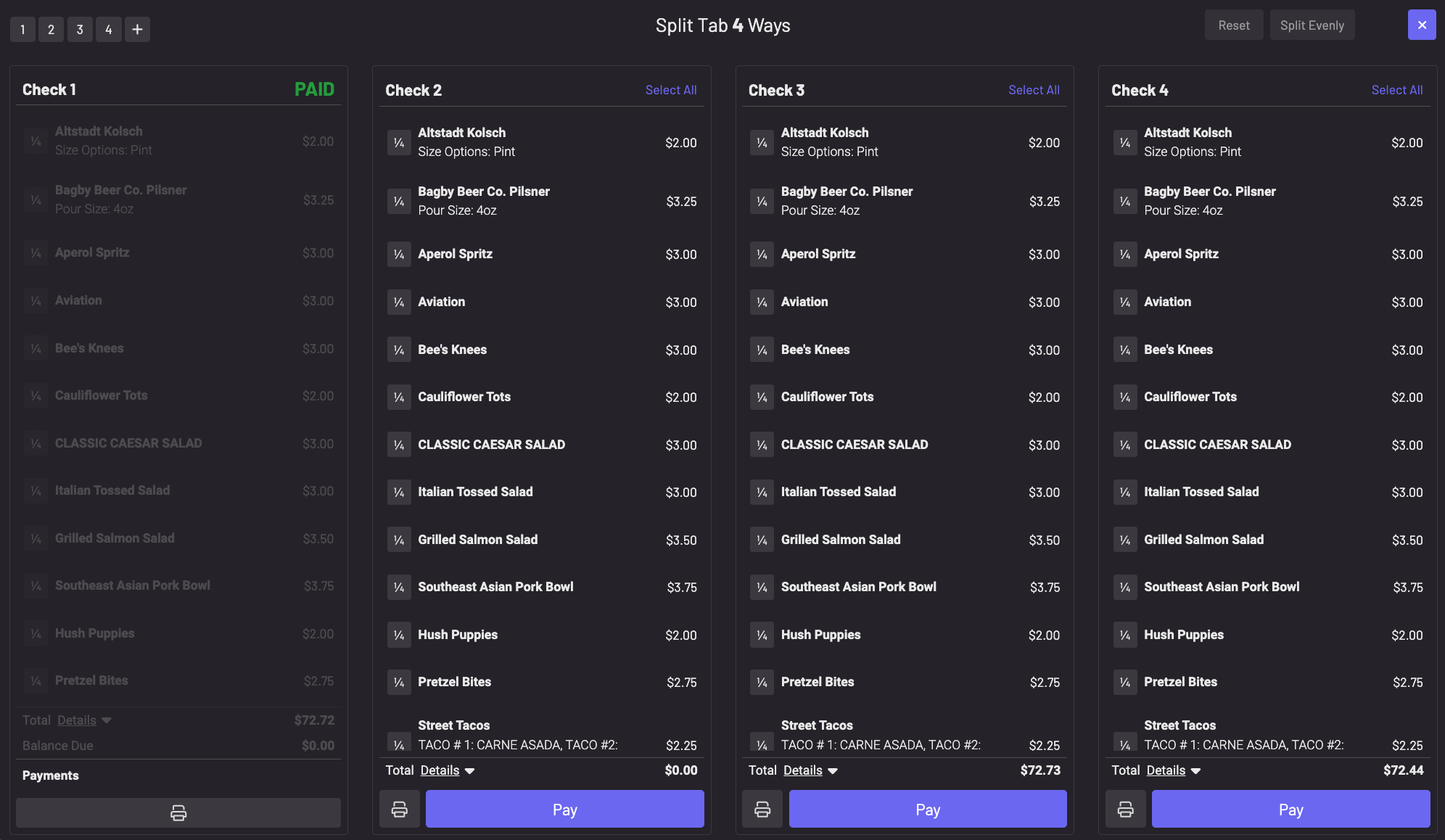
POS: Split Pay
To use Split Pay, press “Split Pay” at the bottom of the tab.
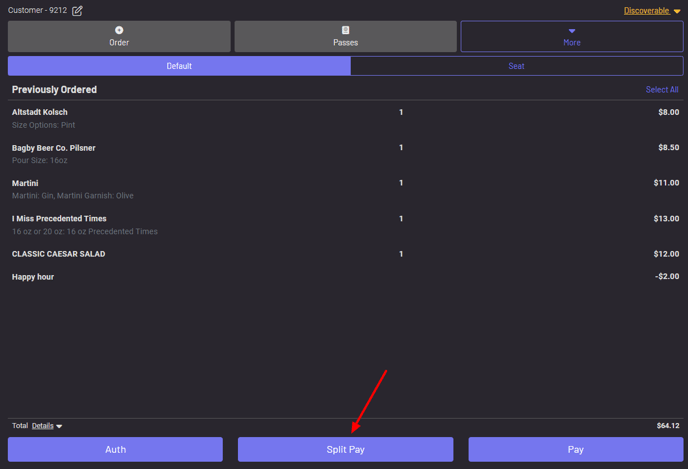
You then have a few options:
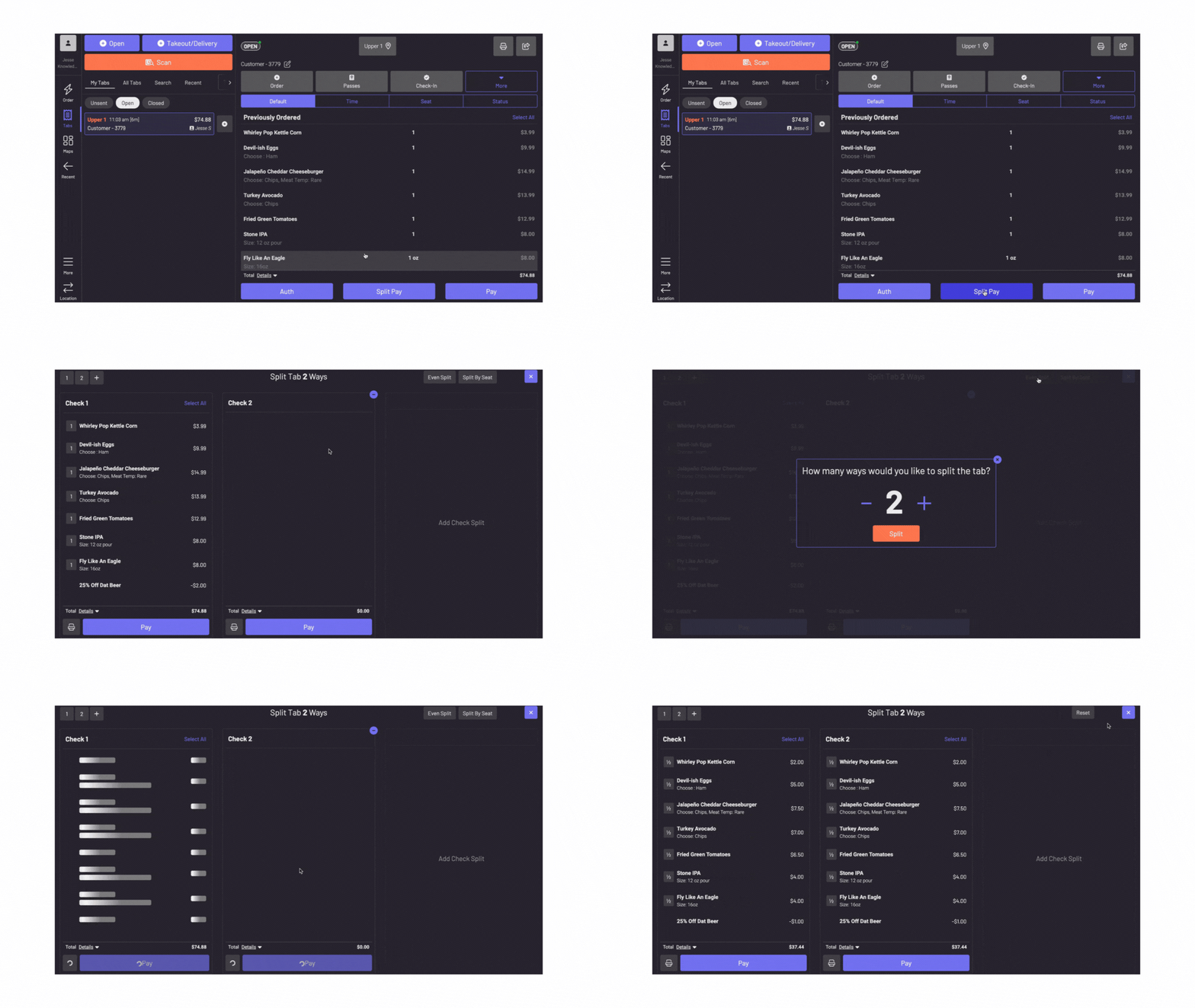
- Split the tab evenly
Press “split evenly” on the top right corner and choose how many ways you want to split the tab
- Pay for each new check on this screen
Select items to split onto new tabs
-
Press “add check split” to add as many new checks as you need
-
Select the items you want to move, then choose the correct check
-
Select an item and click Divide to split that item up between multiple checks
-
Pay for each new check on this screen
-
Move any relevant discounts along with the item to the appropriate check
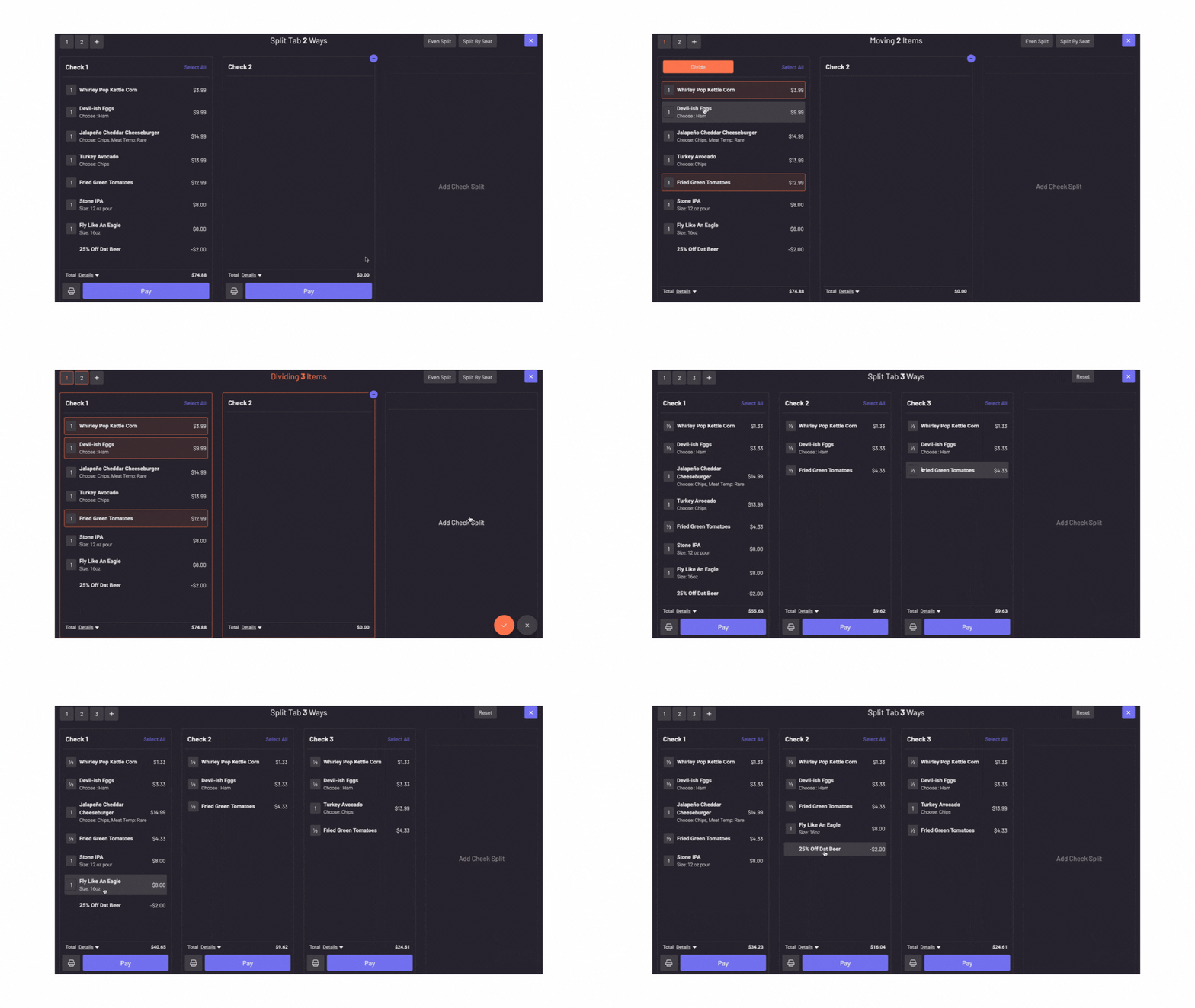 Press “Reset” on the top right to revert back to the original check
**Note: If you exit out of the split pay screen, your changes will be saved when you click back into it to collect payment. **
“Paid” will appear at the top of each check as you accept payment.