How to enable 7shifts Clock-in Enforcement
Requirements
Section titled “Requirements”-
Manager access to GoTab
-
Manager access to 7shifts
-
Intervention with GoTab Customer Support
-
4 digit GoTab PIN length
Important Changes
-
When employees are synced their GoTab PINs will update to match the 7shifts Punch Id.
-
Users must clocked in/out using manual 7punches clock in or with GoTab direct 7shifts API
Clock-in Enforcement Summary
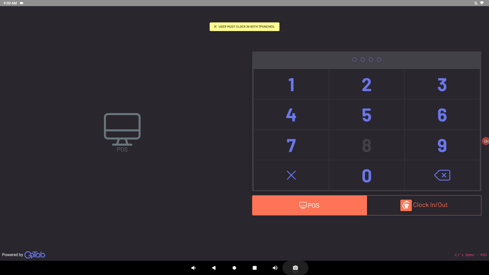
Section titled “Clock-in Enforcement Summary”When employee is set to require clock-in enforcement GoTab will verify the user is first clocked-in to 7Punches before allowing them to access the point of sale. A user will attempt to enter their POS PIN and receive an error instructing them to clock-in. The user will be directed back to the PIN in screen each time until they are successfully clocked-in through 7punches.
How to configure each user for Clock-in Enforcement
Section titled “How to configure each user for Clock-in Enforcement”Before you proceed to step 1 of this section the employee sync must be complete. Additionally, it is important to have 7punches installed and configured for your staff before this change is made.
Step One - Configure each user
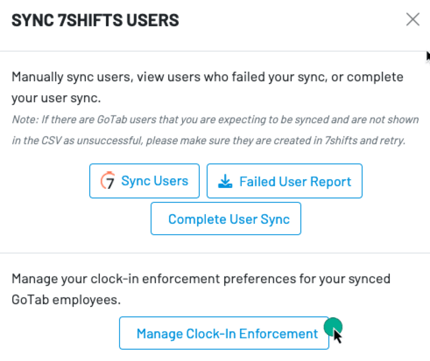
Section titled “Step One - Configure each user”Navigate to Users and select the 7shifts button next to Add New User. Within the modal select Manage Clock-In Enforcement.
Toggle on/off each user based your desired preferences. Select Submit and click X after the modal refreshes to exit.
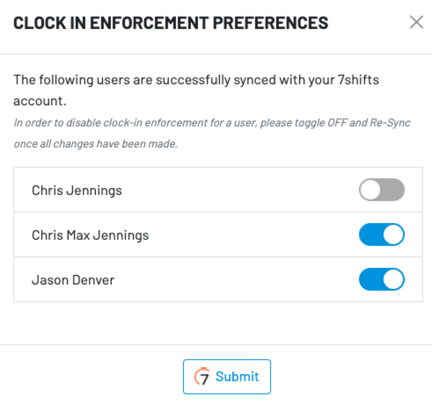
To confirm your changes saved successfully open the Manage Clock-In Enforcement modal and verify each user is set correctly or update the user/s and submit the changes again.
Example error message when a user is not clocked-in attempting to PIN into GoTab POS.