
How To Create an Employee Discount
-
Click “Segments”
-
Add the segment
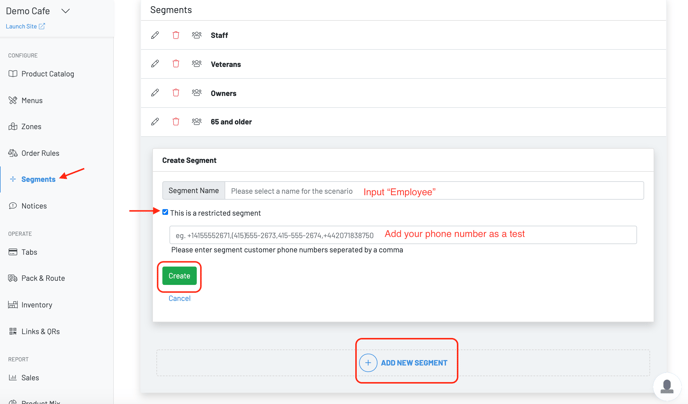
-
Click “Order Rules” and hit the + to create a “Discount”
-
**Step 1 & 2: **Name the discount after the group, “Employee Discount”
-
Follow Steps: 3 - 10 if you are creating a discount for the entire order or a specific product (click here)
-
**Step 11: **Click “Yes”
To access the discount:
-
Click on **Links & QRs, **scroll to the bottom and print out the QR, send the specific group a text with a copy of the link (hit the blue copy link), or email the group an embedded link
-
For discounts on specific products, click on the product catalog to tag the item with “employeediscount”
-
Feel free to create multiple employee discounts! Reach out to your account manager if you need assistance.

Discounts automatically appear at the end of the ordering flow upon check-out