How To Create A Delivery Map
First Create Map In Google My Maps
-
Navigate to Google Maps.
-
Input the operation’s address into the search bar.
-
Use the drawing tool to create a region. The region must be drawn as a closed shape.
-
Select the menu tool on the layer for your map.
-
Export the layer to KML.
-
In the modal, select the correct layer and click the checkbox next to, “Export as KML instead of KMZ. Does not support all icons.”
-
Hit Download.
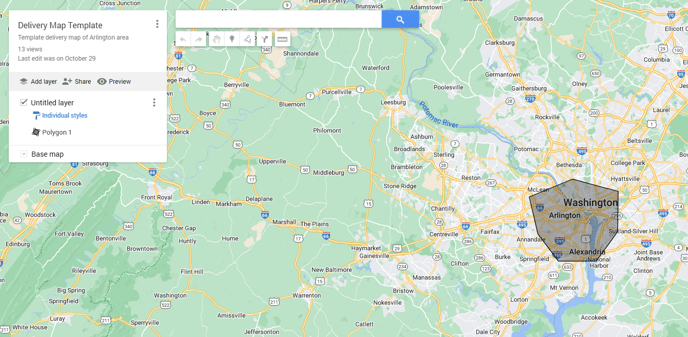
Below is a screenshot demonstrating what a correct delivery zone would look like when creating in Google Maps.
In GoTab, on the Zones Dashboard
-
Hit Zones
-
Click Delivery
-
You will need to create a zone just like you did in the previous lessons.
-
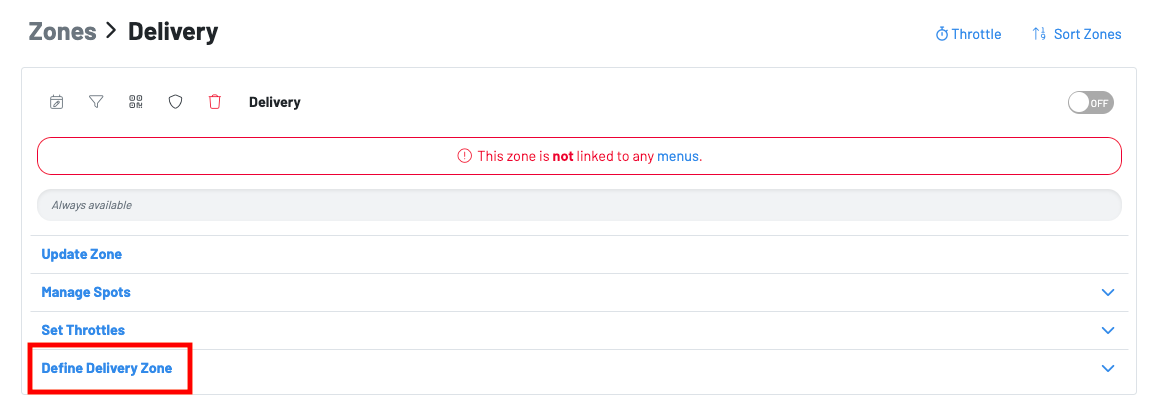
Once you create your zone, press “Define Delivery Zone”
-
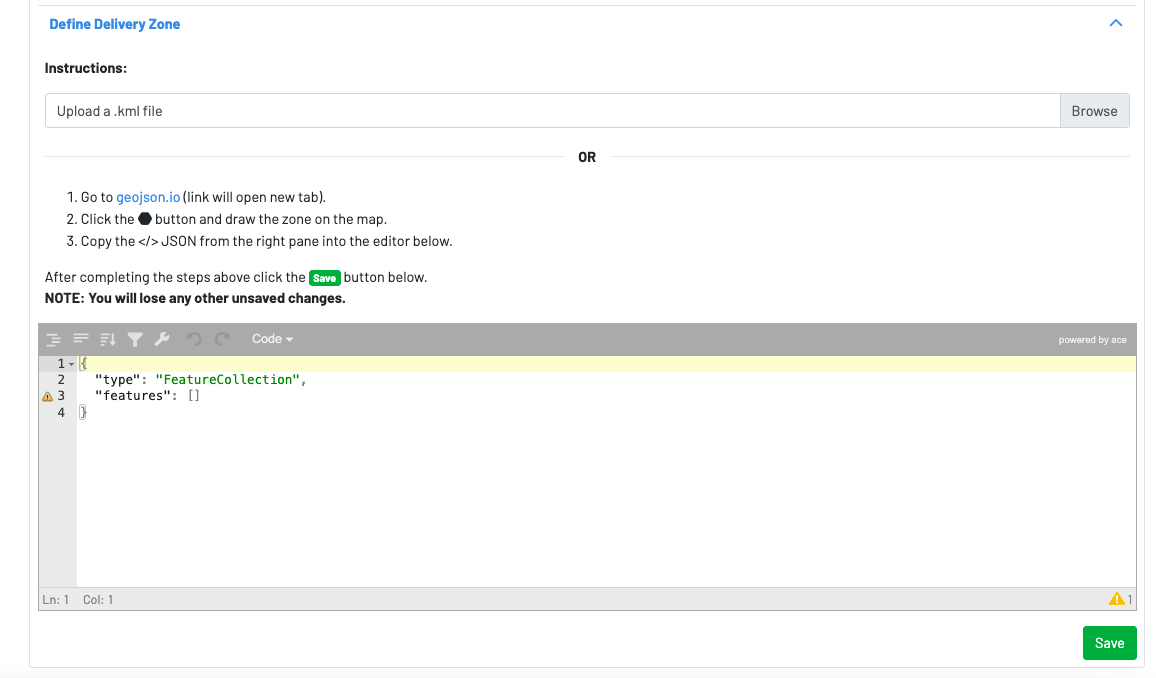
Click upload a .kml file to create your delivery map in GoTab.
Define Delivery Zone
Upload a .kml file
*Notes: *-You can only save one zone per map (so not multiple shapes/zones within one KML file).
-Type needs to be a single Polygon. If you see anything about Linestring etc. within the KML file, it’s not a singular closed Polygon shape and you will not be able to upload the file.
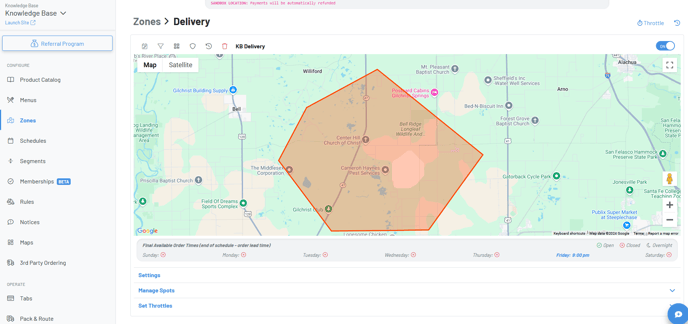
Below shows what it looks like in the GoTab Manager Dashboard when a delivery map has been uploaded to your delivery zone(s).