How to Connect OpenTable
Summary
Section titled “Summary”Accept, view, and manage your online reservations all in one place so you can plan your shifts with ease., when you choose OpenTable, you can—
-
Bring in higher paying guests
-
Reach millions of online booker
-
Make diner booking easy as pie
-
Gain real insights into how your business measures up
Requirements
Section titled “Requirements”-
Manager access to GoTab
-
Manager access to OpenTable
Step One: Log-in to OpenTable
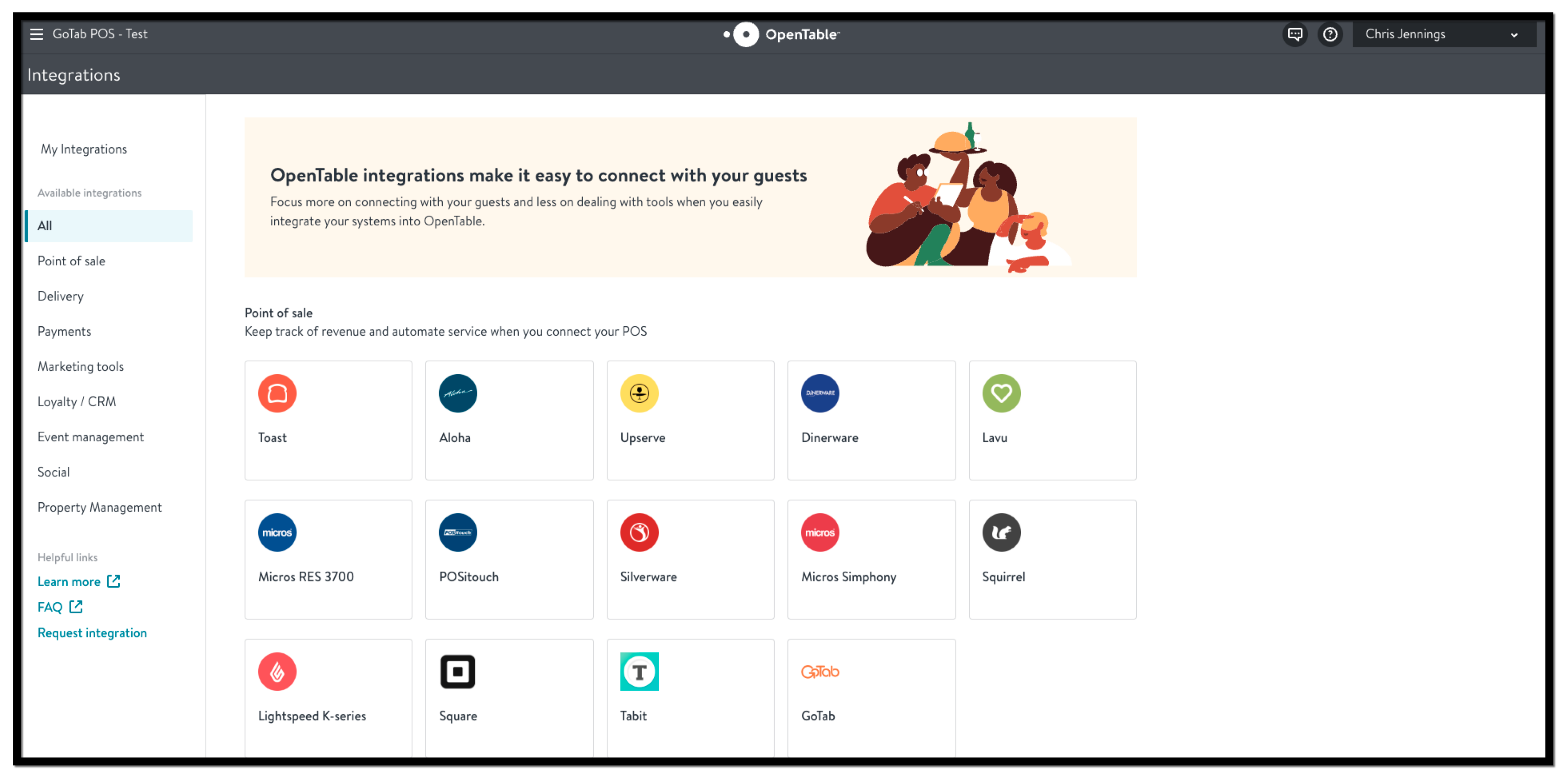
Section titled “Step One: Log-in to OpenTable”If you already have an OpenTable for Restaurant account, log-in and select Integrations from the left hand burger drop down navigation menu. Search for GoTab under Point of Sale and select the tile. Start here if you need to sign up for an OpenTable for restuarant account.
Step Two: Connect with GoTab
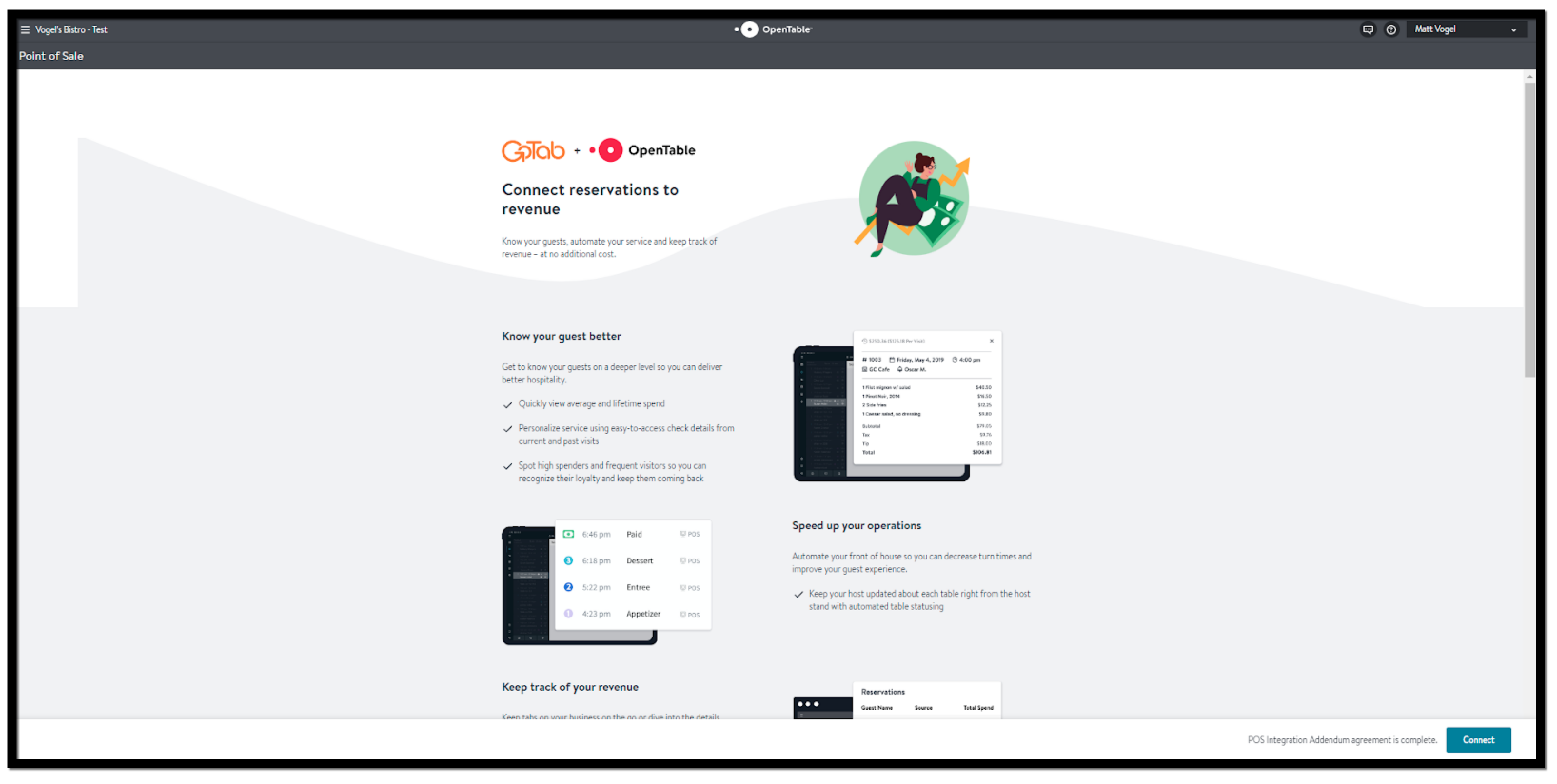
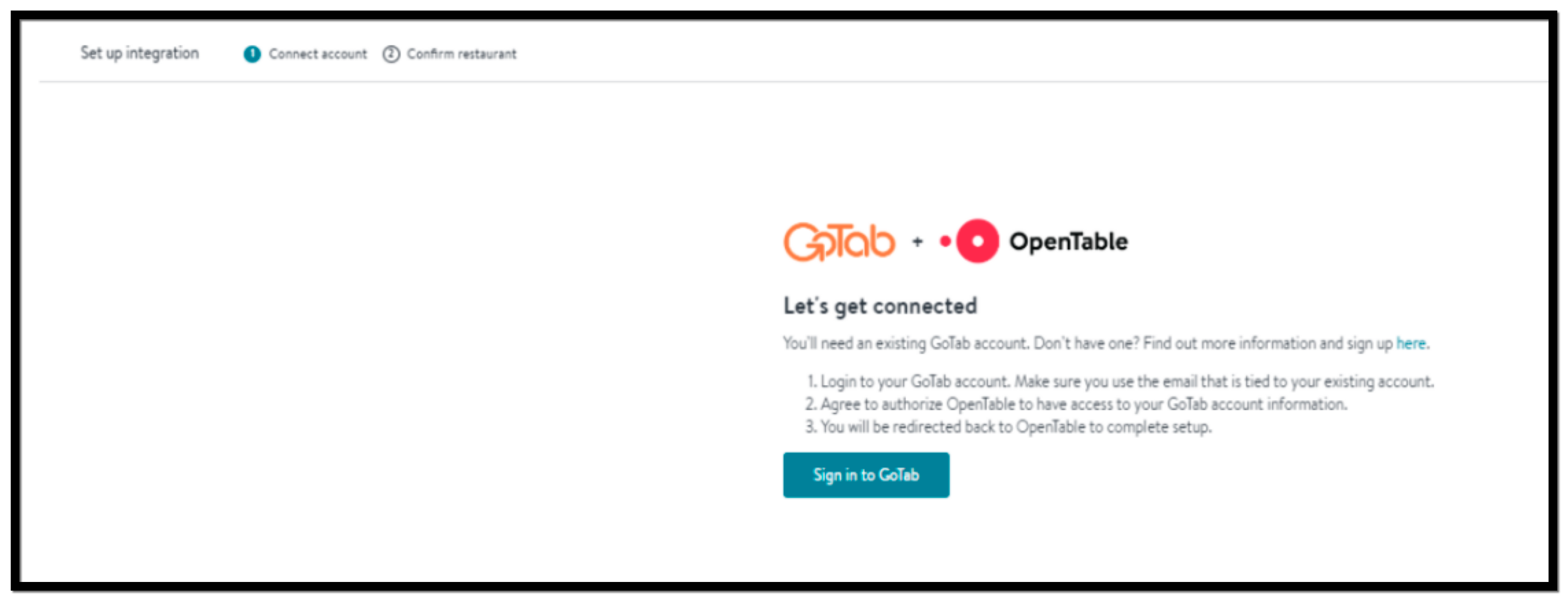
Section titled “Step Two: Connect with GoTab”In the lower right corner after opening the GoTab integration tile **select Connect **and then select Sign-in to GoTab.
Step Three: Verify your GoTab user account
Section titled “Step Three: Verify your GoTab user account”OpenTable will redirect you to GoTab’s verification page. If you are already logged into your GoTab account proceed to step four.
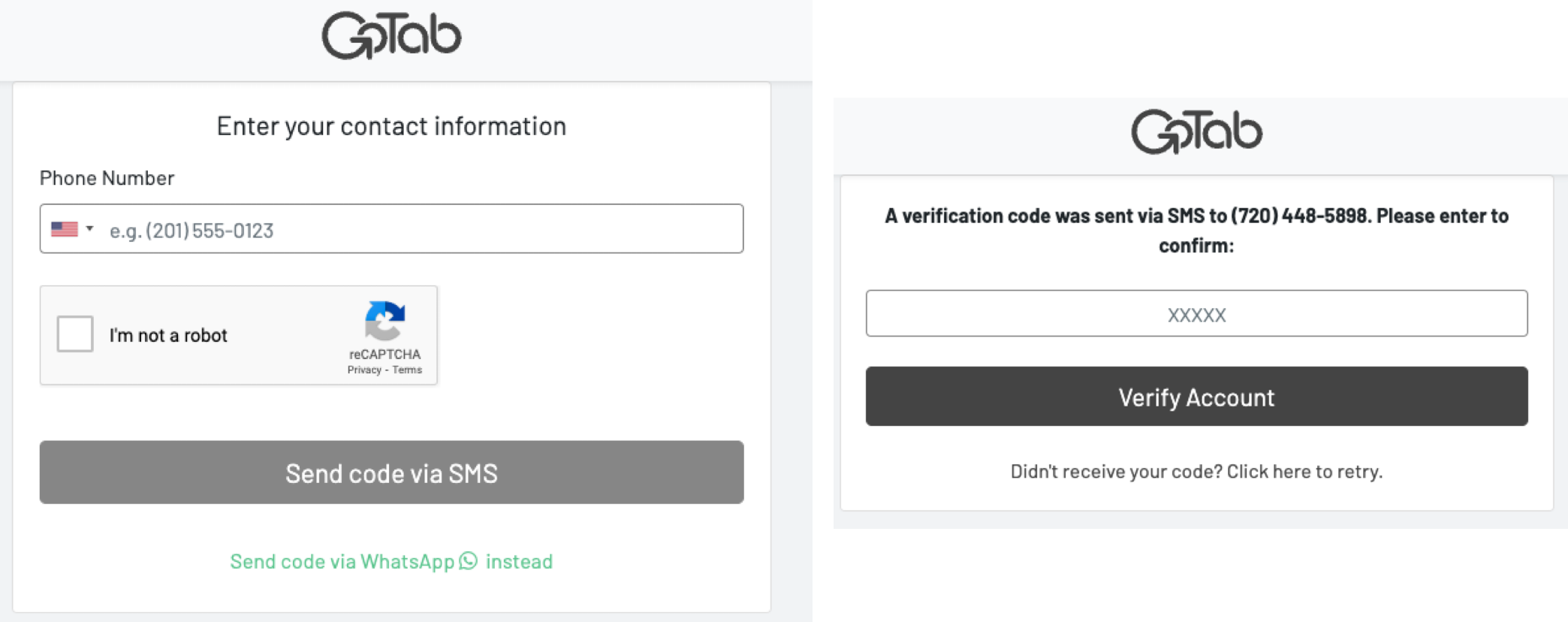
Enter your mobile number associated with your GoTab manager user account and the SMS verification code sent to your mobile number.
Step Four: Authorize OpenTable
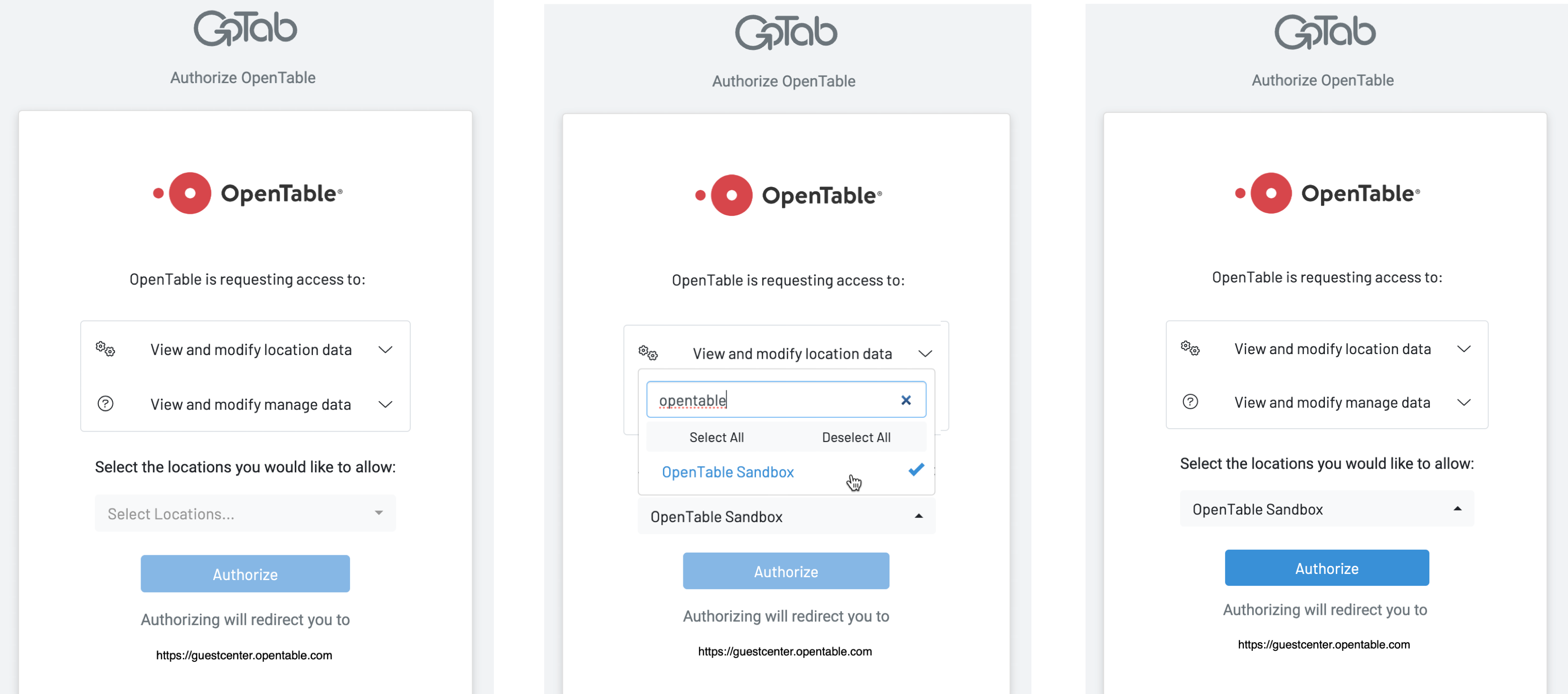
Section titled “Step Four: Authorize OpenTable”Select your GoTab location from the dropdown and authorize OpenTable permission to view your location details. The location details will be used to map your GoTab account with your OpenTable account.
Step Five: Map your Accounts
Section titled “Step Five: Map your Accounts”After granting OpenTable access to your GoTab account you will need to confirm the location details for both accounts is correct. Once confirmed select finish.
This will ensure the proper receipt details are shared with OpenTable to map reservations with checks.
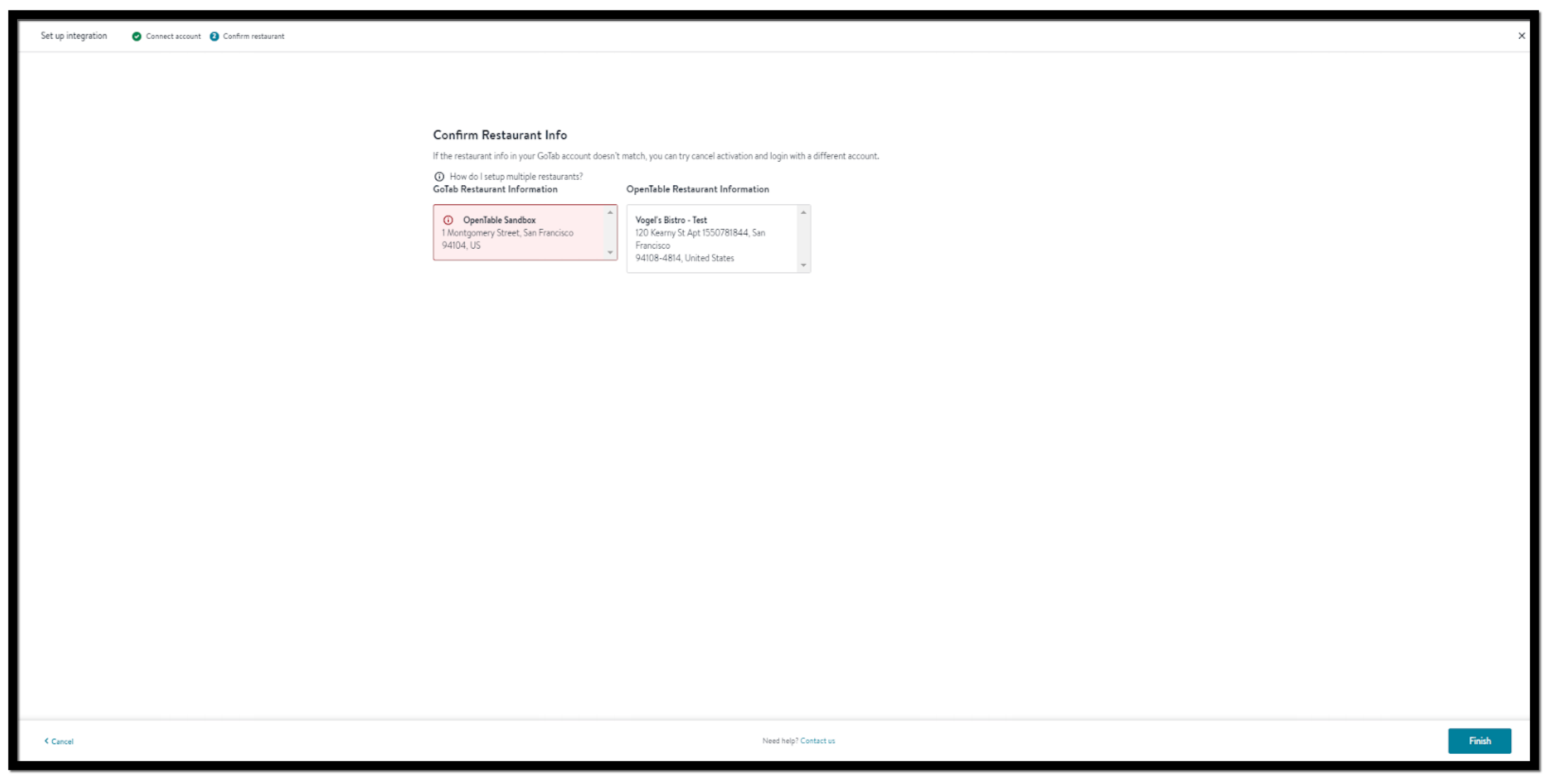
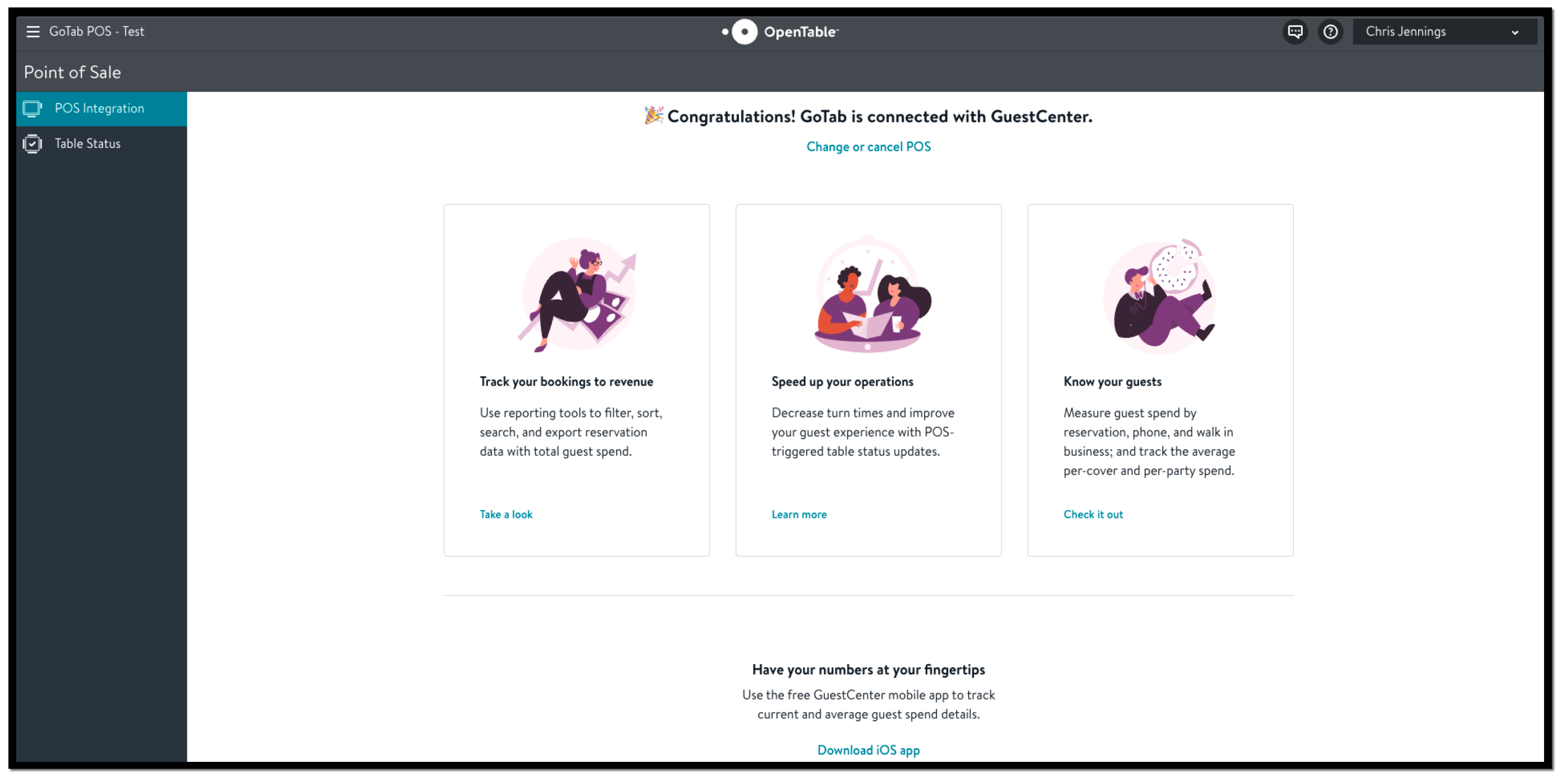
After successfully mapping your locations your integration between GoTab and OpenTable is complete.