How Do I Pair an NYC1?
Pairing NYC1 to Customer Facing Display (CFD)
Troubleshooting/FAQs/Best Practices
Pairing NYC1 Directly to POS
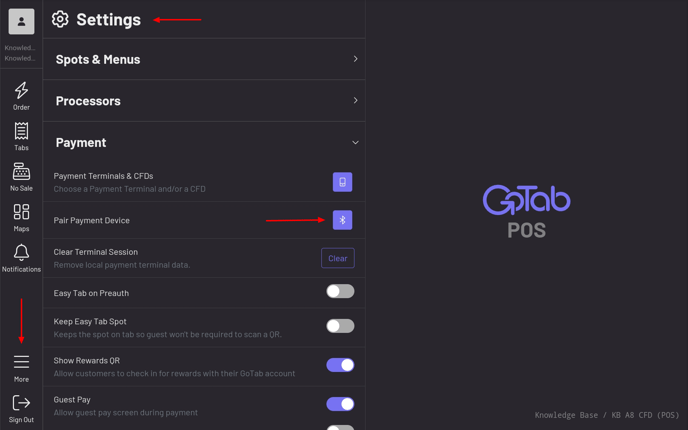
-NYC1 pairing takes place within the GoTab POS app.
-In the POS, navigate to More—Settings—Payment—Pair Payment Device.
-Click hereto jump to the NYC1 pairing process.
Pairing NYC1 to a CFD
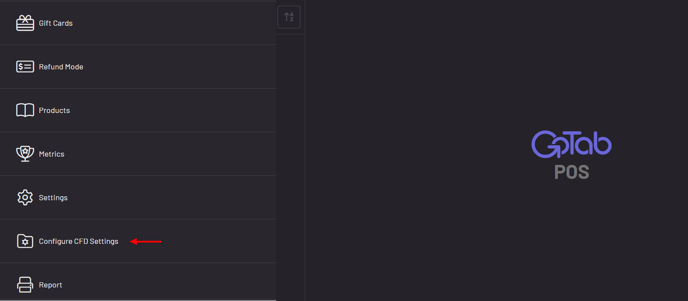
-In the POS, navigate to More—Configure CFD Settings.
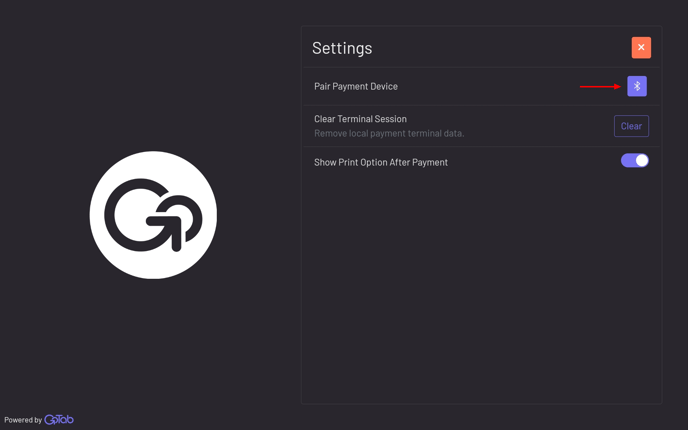
-Now, on the CFD itself, click the Bluetooth icon by “Pair Payment Device”.
Pairing Continued
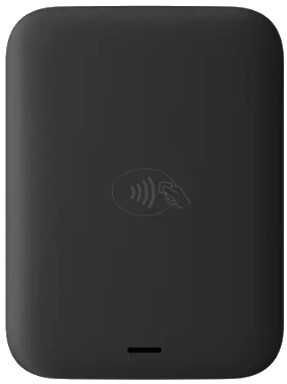
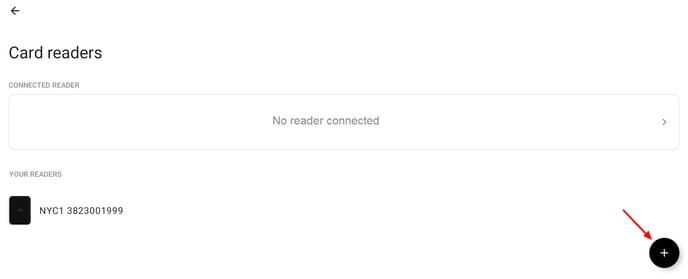
-S/N found on underneath of NYC.
-“Your readers” indicates any NYC1s previously paired to this device. If S/N of NYC1 trying to pair matches one already listed under “your readers”, select that one and it will automatically pair.
-Click + sign if pairing a brand new NYC1 or NYC1 is not listed under “your readers”.
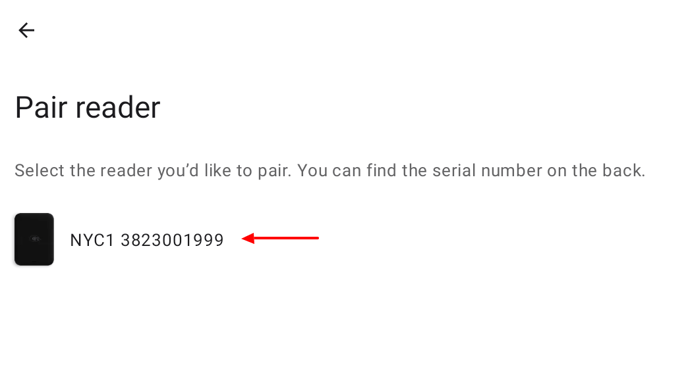
-Select the NYC1 you’re trying to pair to. If you have multiple NYC1s at your location, this pair screen will show all NYC1s in range.
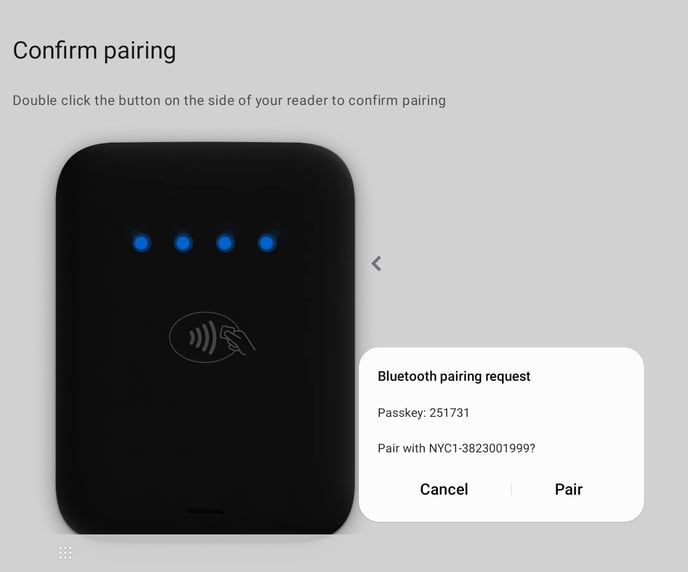
-Now that you’ve selected a reader, the reader will beep and flash blue lights, indicating it’s in pairing mode.
-You can pair in either order.
-Distinctly double tap the NYC1 button on the side and only then click “Pair” on the screen.
OR
-Click “Pair” on the screen and only then double tap the NYC1 button.
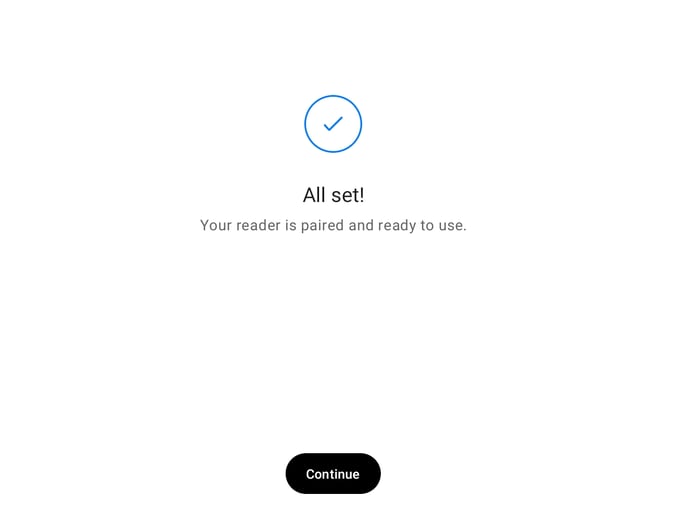
-You should now see the “All set!” screen indicating a successful NYC1 pairing.
Troubleshooting/FAQs/Best Practices
 **
**
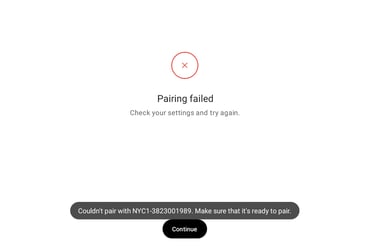
Q: I received this “Pairing Failed” screen. What do I do?
**
**
Q: I received this “Pairing Failed” screen. What do I do?
This most commonly occurs if the double tap of the NYC1 button and “Pair” on the screen are attempted at the same time. Do one, then the other.
***A: Try again. ***
Q: I received the “Pairing Failed” screen again. Now what?
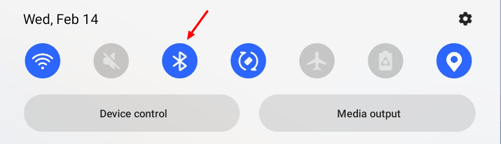
A: Verify your device’s Bluetooth is turned on.