
How do I connect Restaurant 365
Before you Begin
Section titled “Before you Begin”To connect Restaurant 365 with your GoTab account you must first create your organization/s in Restaurant 365 via their Setup Assistant.
The POS Integration section is where you begin integrating your organization’s GoTab system into R365. Users can view the status of their GoTab Integration request and other key details, including the system name and last polling dates. Review the following links for more information on POS Integration with Restaurant 365:
POS Integration: Setup Assistant POS Integration Settings Overview POS Integration Settings: POS Groups
Step One - Configure your POS Integration in Restaurant 365
Section titled “Step One - Configure your POS Integration in Restaurant 365”As an administrator or manager user for R365 login to your account and access Setup Assistant from the top navigation Administration dropdown.
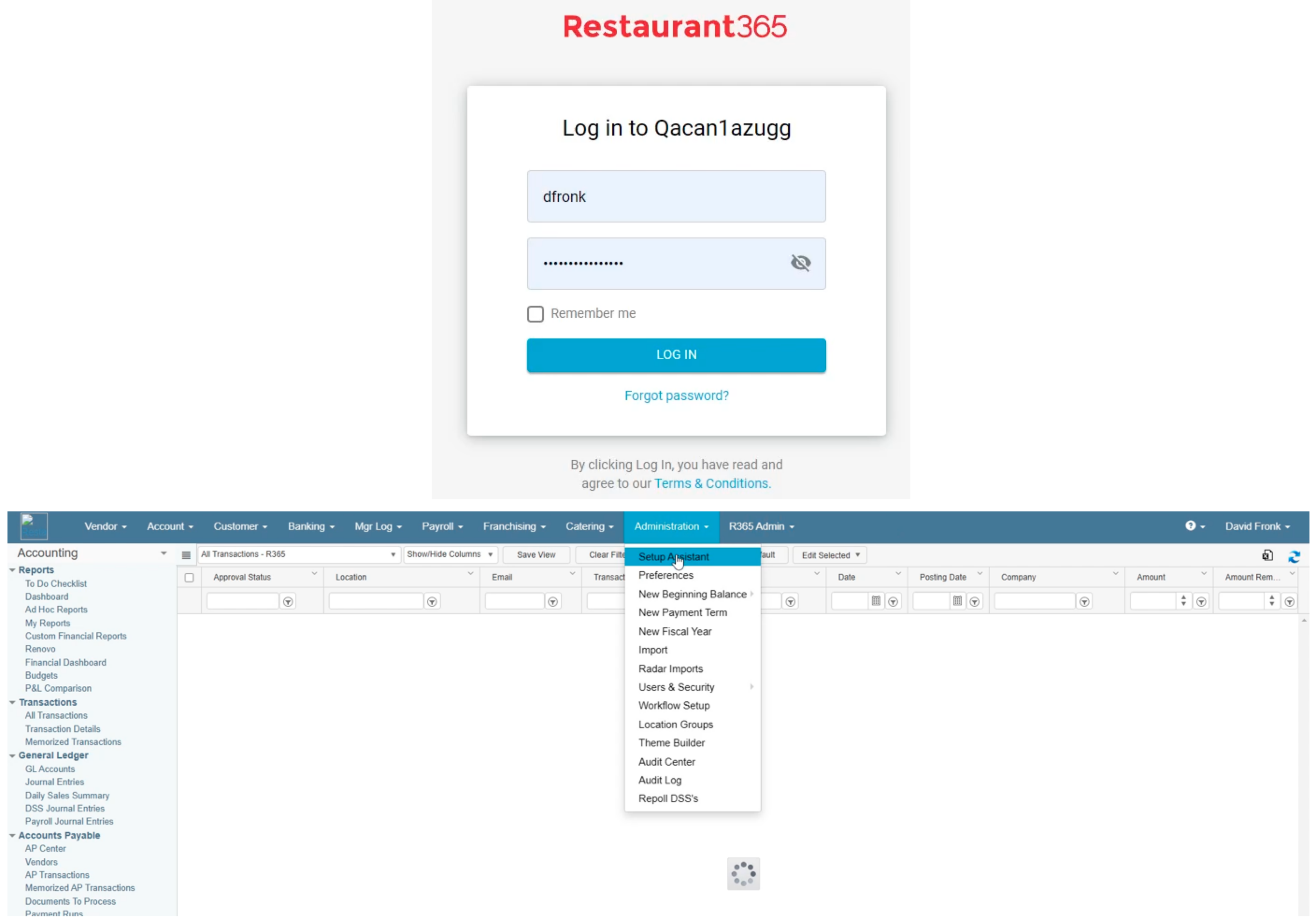
Step Two - Configure your POS Integration in Restaurant 365
Section titled “Step Two - Configure your POS Integration in Restaurant 365”Within Setup Assistant, select POS Integration > POS Request from the left navigation bar. If you have not already completed the Setup Assistant please follow the steps documented by R365. If your account has multiple locations you will need to complete these steps for each location.
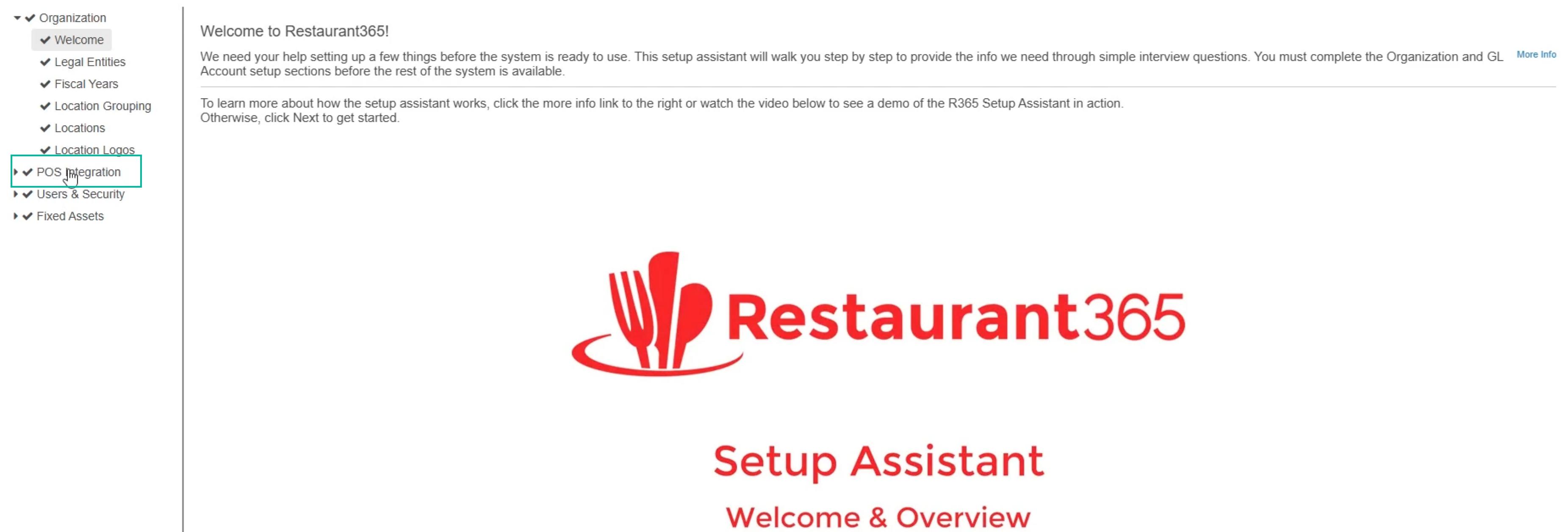
Step Three - Select and Verify your Location
Section titled “Step Three - Select and Verify your Location”-
Select the location you want to connect with GoTab.
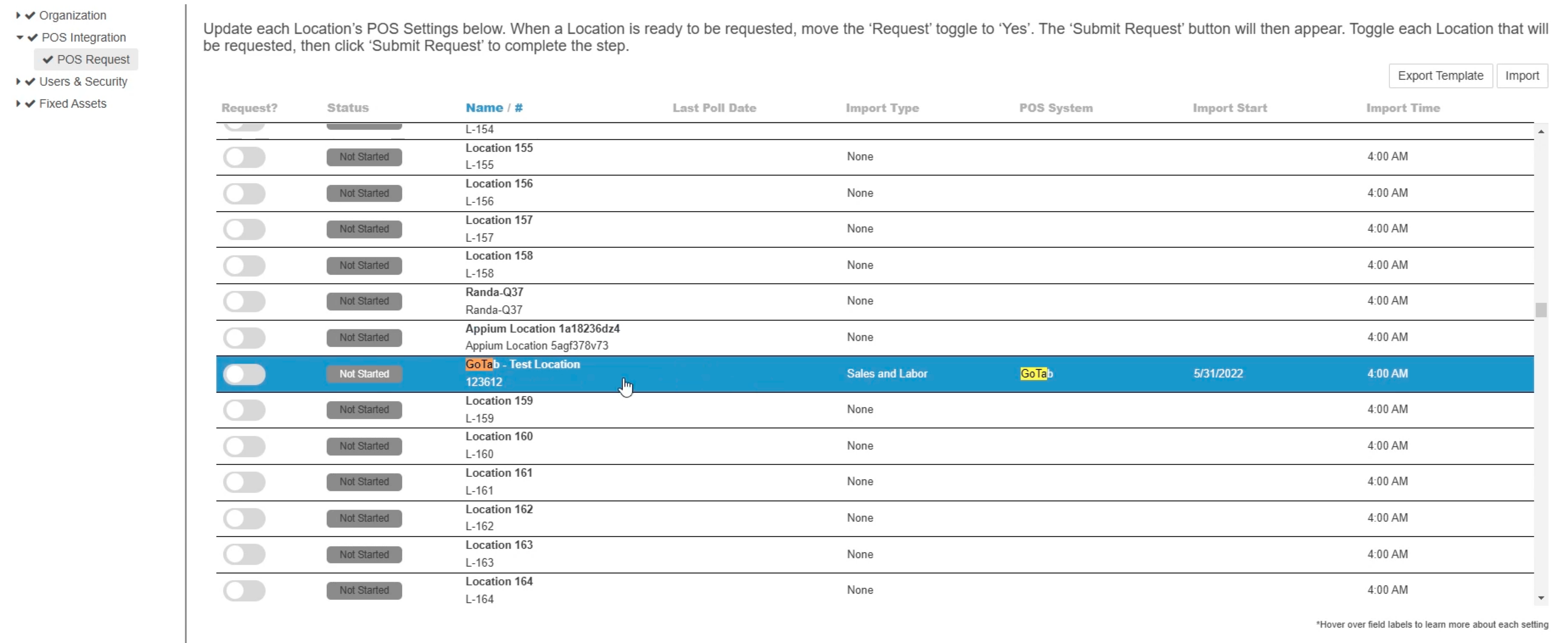
-
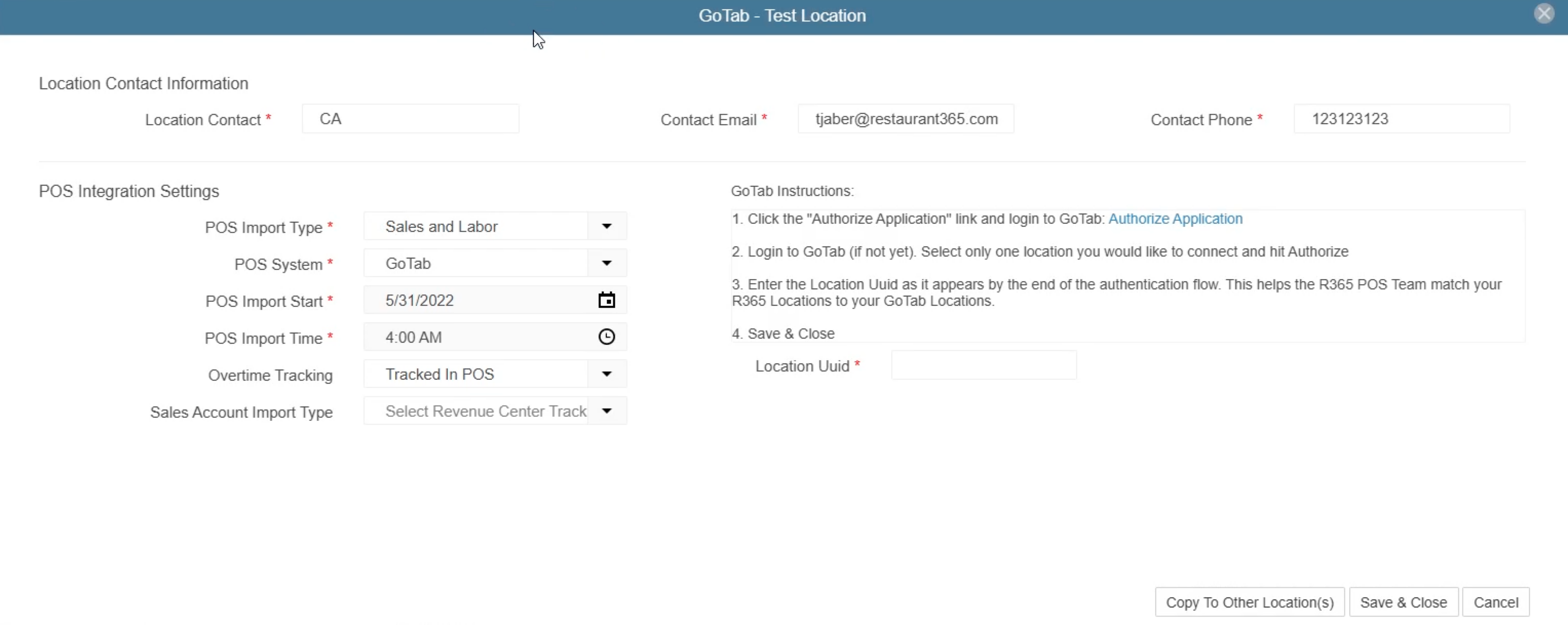
Verify the Location Contact Information and the POS Integration Settings are correct. This information would have been complete during the Setup Assistant Export.
-
**POS Import Type **- Sales or Sale & Labor
-
Overtime Tracking - R365 OT Rules (required for GoTab)
-
Sales Account Import Type - These options are very customer specific as it allows customers to choose whether they want to include Service Type (Order Mode…essentially Dine In vs Take Out vs Delivery, etc.), or Revenue Center (patio vs bar vs main dinning area, etc.), or the two combined in how we name the Sales Accounts that we create via the integration. Here is a R365 support article for additional information: Sales Account Import Types.
Step Four - Authorize your GoTab Account
Section titled “Step Four - Authorize your GoTab Account”Within the location POS setup assistant screen (image above), click Authorize Application and Restaurant 365 will redirect to GoTab’s authorization page.
-
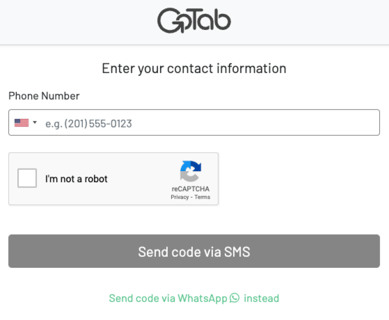
If you are not already logged into GoTab Manager you will first verify your GoTab user account.
-
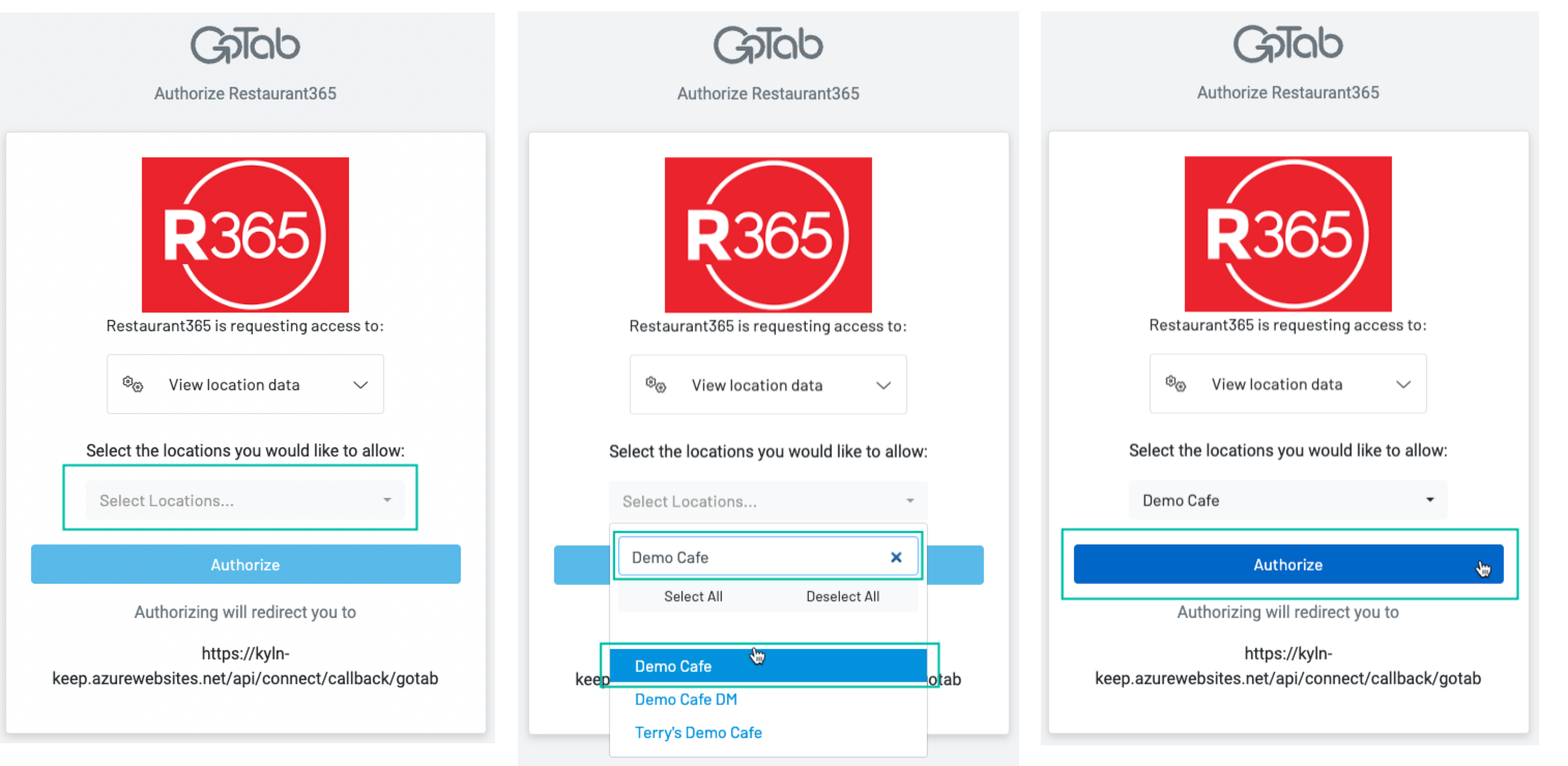
Once signed-in select the location Restaurant 365 needs access to for sales and labor data reporting. Click Authorize once your GoTab location is selected.
-
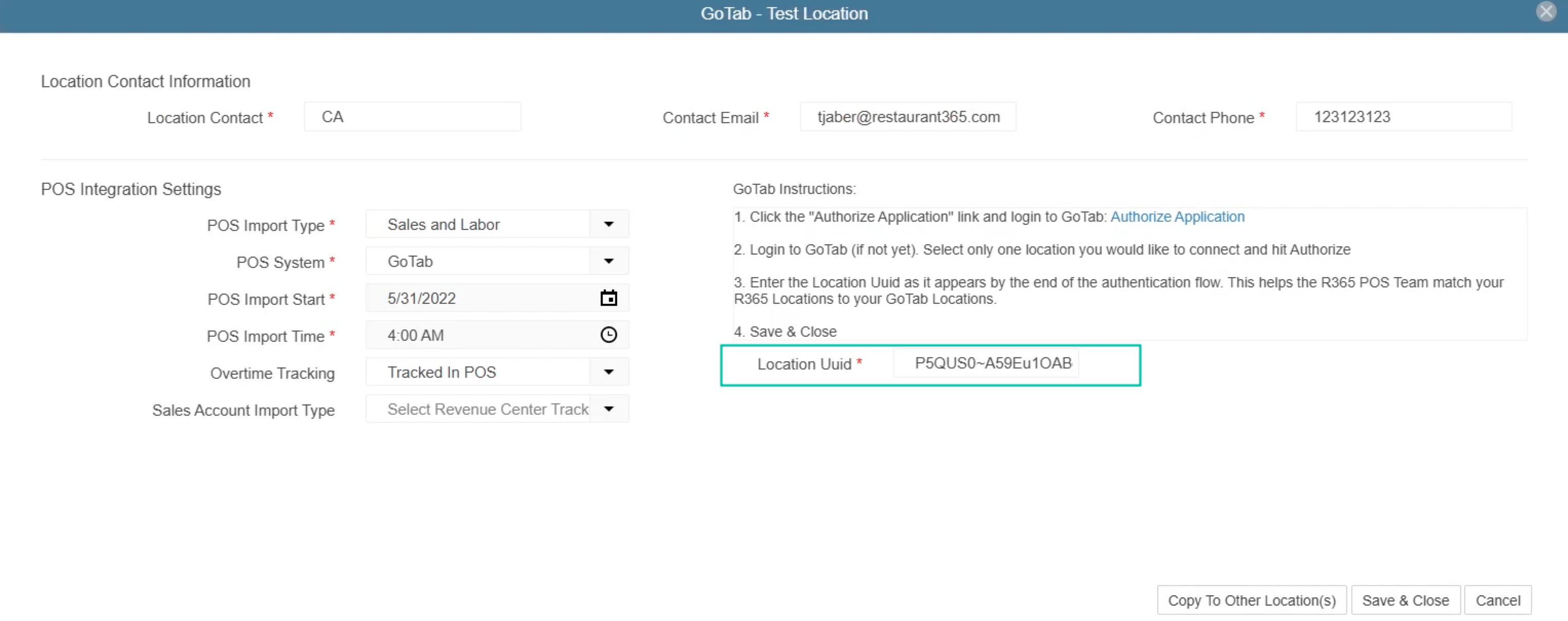
Upon authorizing Restaurant 365 you will be redirected to a new page that displays your GoTab locationUuid. Copy this number and paste it into your R365 POS setup assistant screen.

-
Save and Close the POS Setup Assistant and close out of any GoTab windows. Your integration is now connected.