How to Create A Modifier
*Note If you are using our Option Groups, please see this article. *
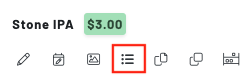
**Step 1: Click the lined (Update Product Options) icon on the product you are adding modifiers to. **
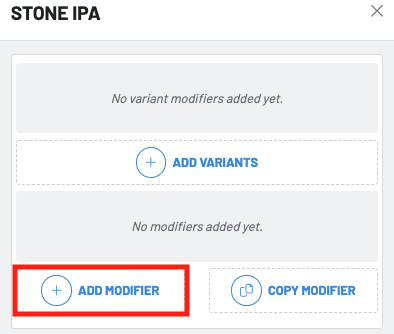
Step 2: Choose your option. In this case it would be +add modifier.
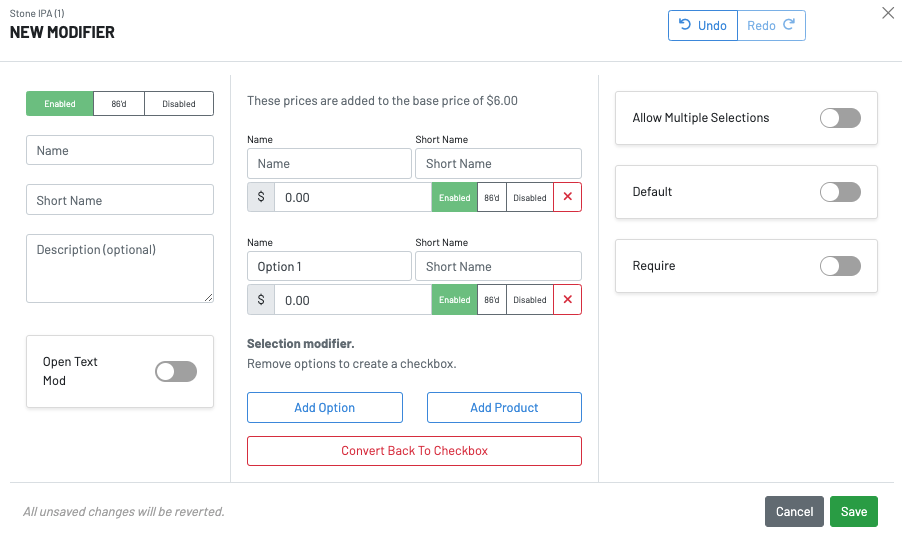
**Step 3: Add in the following information and press save! **
-
Name: Name of the modifier
-
Short Name: This will display on the chit and KDS order cards
-
Description: Description of the modifier for the guest
-
Open Text Mod: A blank box for the guest to input any information about their order
-
Add Product As Option: Add an existing Product as an option (easily searchable)
-
**Price: **This amount will be added to the item’s base price
-
Add Option: Click this to add more than one option
-
Convert Back To Checkbox: Allow the modifiers to be presented in a checkbox design
-
Allow Multiple Selections: Allow multiple selections of each modifier
-
Require: Require the customer to choose a modifier
Selecting a Default Modifier
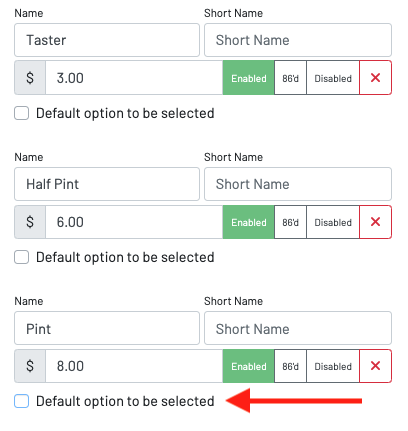
You can also choose a **default modifier. **This allows operators to specify modifiers that auto-populate upon ordering a product. Choosing a default modifier helps improve the speed of POS orders and streamlines the guest ordering experience.
To select a default modifier, select the checkbox below the modifier option: