
Starting a Dine In Order
How to start a dine in order for a guest:
Section titled “How to start a dine in order for a guest:”Step 1: Click + Tab
Section titled “Step 1: Click + Tab”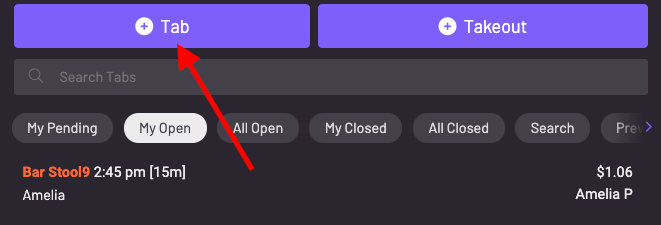
Step 2: Choose the spot the guest is sitting at
Section titled “Step 2: Choose the spot the guest is sitting at”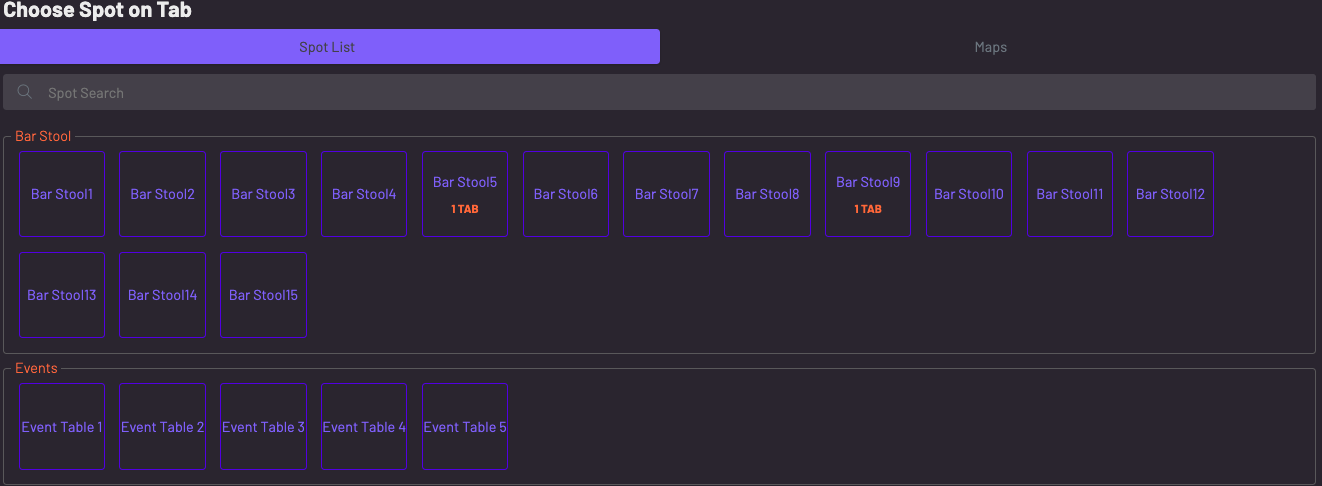
Step 3: Add items to the guest’s order. You can flip through menus and categories to find items.
Section titled “Step 3: Add items to the guest’s order. You can flip through menus and categories to find items.”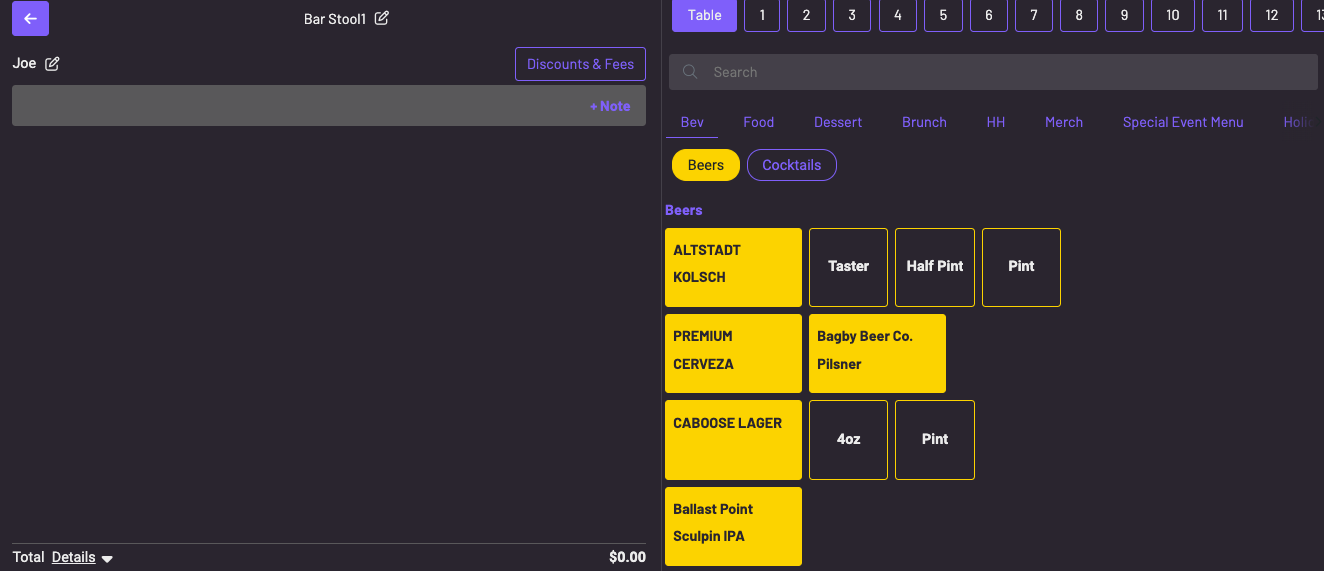
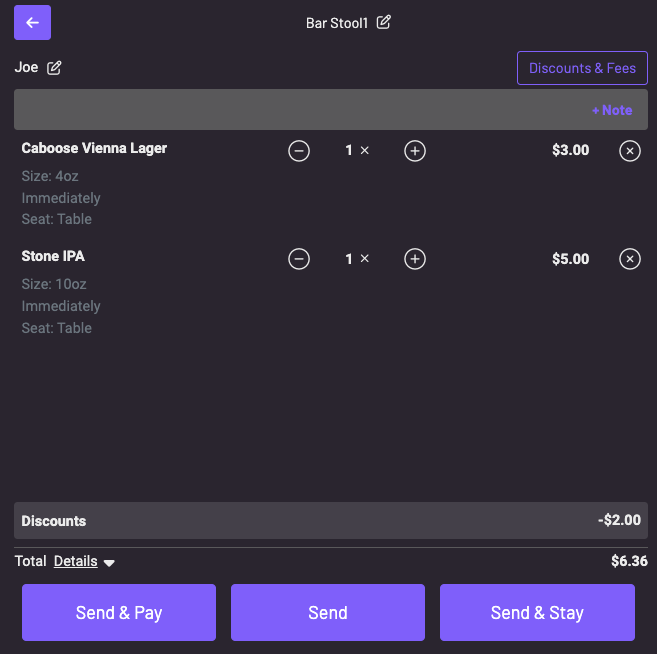
Step 4: Send & Pay, Send, or Send & Stay*
Section titled “Step 4: Send & Pay, Send, or Send & Stay*”Send & Pay
-
Easily place an order and pay upfront
-
Scenario: a pick-up counter
Send
- Send an open tab order to the kitchen and authorize the guest’s card or capture payment later.
Send & Stay
-
After sending the first order, the server is immediately prompted to input another order
-
Scenario: a server inputs the drink order, and then inputs the food order to pace the order
When the tab is open, you can ask the guest to pay with a physical credit card, authorize their card, or text them their bill to pay on their phone.
Section titled “When the tab is open, you can ask the guest to pay with a physical credit card, authorize their card, or text them their bill to pay on their phone.”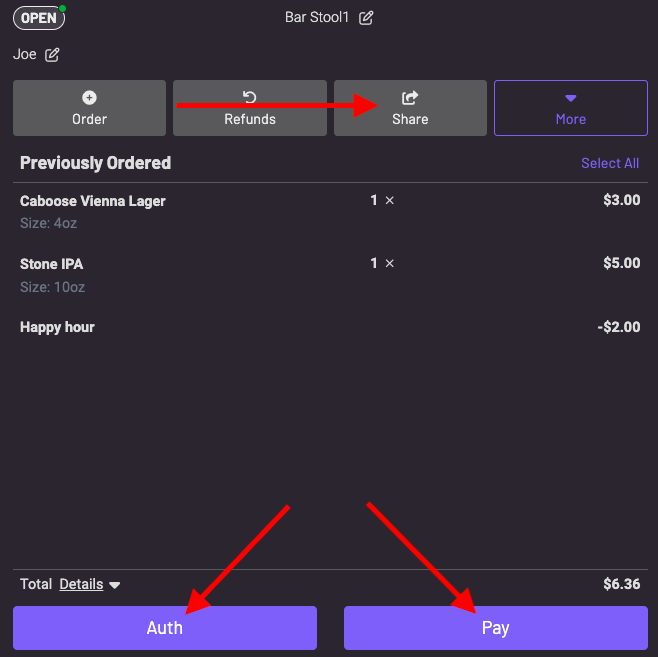
*Note: You may also choose to show the Send & Auth button on your POS which would allow your staff to send the order and immediately prompt for the authorization of a card. To enable this for your POS go to More > Settings > Spots & Menus and toggle on “Show Send & Auth Button”.